
Quick Entry Pane
The Quick Entry Pane lets you quickly capture tasks without switching to the desktop app. You can assign a global hotkey in the preferences which, when triggered, will display the quick entry pane over whatever app or screen you’re currently working on.
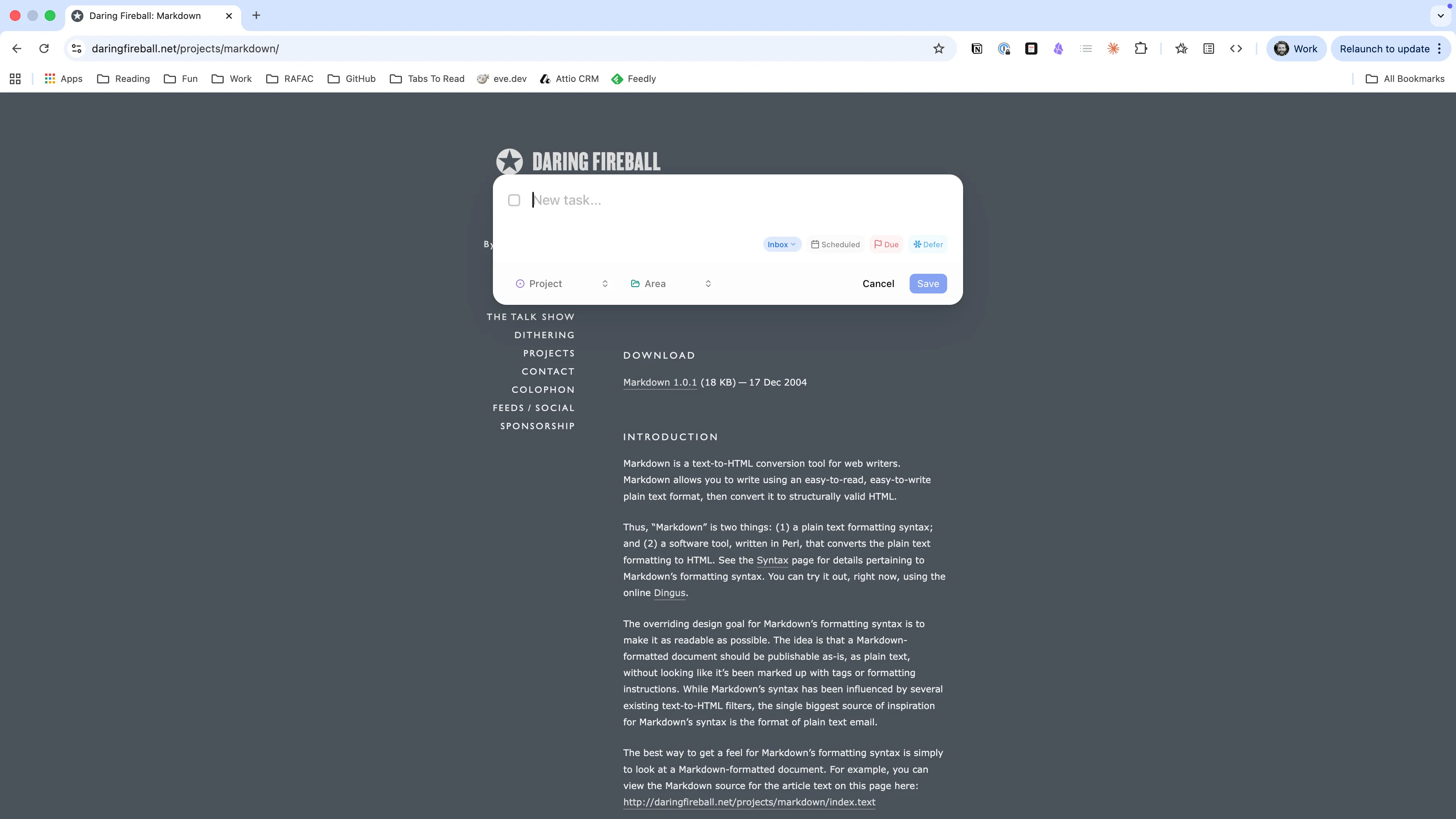
The fastest way to create a new task is to simply type it and press inbox, which you can process later.
If you want to add a task with specific fields, you can do so by clicking the various controls, or using the same keyboard shortcuts you would in the main app.
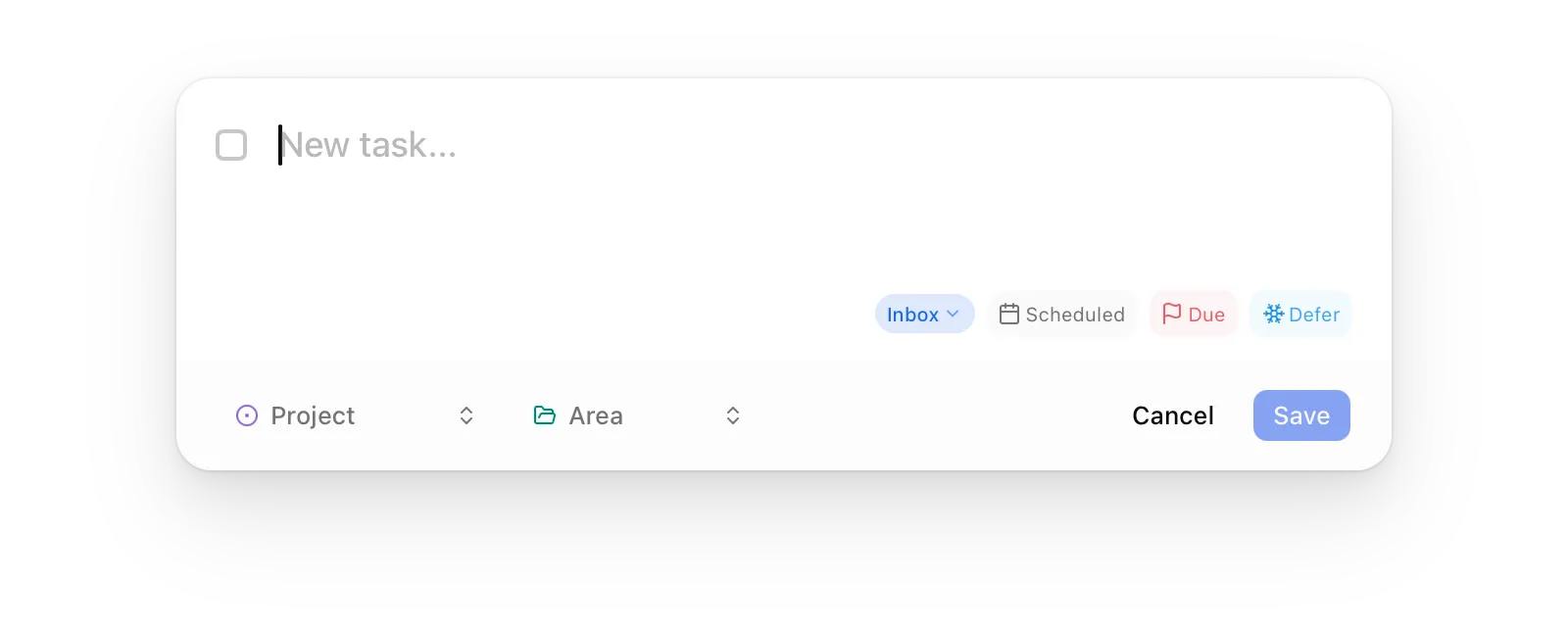
Adding a body
Section titled “Adding a body”While the majority of tasks created this way probably won’t have a body, pressing
Auto-ready status
Section titled “Auto-ready status”When you set a project or area and a scheduled or defer-until date, the status automatically changes from inbox to ready. A task with both a project/area and a date has been processed enough that it doesn’t need to sit in the inbox.
AI processing (macOS)
Section titled “AI processing (macOS)”On Macs with Apple Intelligence enabled, a sparkle button appears next to the title when you’ve typed something. Clicking it (or pressing
This works entirely on-device — no data is sent to any server. The AI pre-fills the form fields for you to review and adjust before saving.