
Task Details Panel
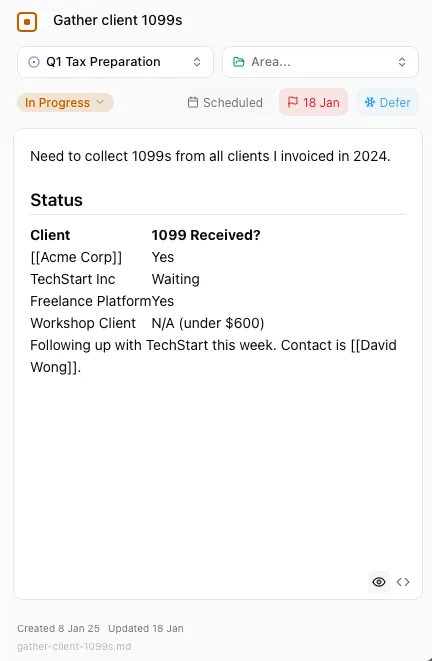
The task details panel appears as a sidebar on the right-hand side of the main window. It always shows the details of the currently-selected task, or the last selected task if none is currently selected.
Editing a Task’s Data
Section titled “Editing a Task’s Data”The following fields can be edited directly from the task details panel:
| Field | Description |
|---|---|
| Title | The task’s name, displayed at the top of the panel. Click to edit, enter to save. Press Escape to cancel. |
| Project | The project this task belongs to. Select from the dropdown or leave empty. |
| Area | The area of responsibility this task falls under. Select from the dropdown. |
| Status | The task’s current status (e.g. In Progress, Completed). Clicking the checkbox beside the title will toggle the status between Ready and Done. |
| Scheduled | The date the task is scheduled to be worked on. Click to set or clear. |
| Due | The task’s deadline. Displayed in red/orange when approaching or overdue. |
| Defer | A “defer until” date. The task won’t appear in active lists until this date. |
The task’s filename, created-at, updated-at and completed-at fields are shown at the bottom but cannot be manually edited.
Using the Date Pickers
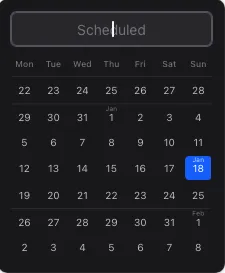
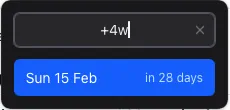
Section titled “Using the Date Pickers”Clicking the scheduled, due or defer controls will open a date picker. Pressing Enter will set the date, while Escape will close the date picker without setting a date. You can select a date in three ways:
- Using the left/right/up/down keys and pressing Enter
- Clicking on a date. You can quickly scroll to find dates in the far future.
- Typing natural language like “tomorrow”, “three weeks”, “next friday” or “25 jun” and pressing Enter. All common date formats are accepted, as well as things like “+5w” (which will select a date in five weeks time).
Editing the task body
Section titled “Editing the task body”The body of the task can be edited in the textarea below, which renders the markdown as a live preview. It supports all the features and keyboard shortcuts you’d expect in a WYSIWYG markdown editor plus a few extras:
- Checkboxes in markdown checklists are clickable.
- You can insert a new checklist item by typing
[]followed by a space on any newline – same as in Notion. - Pasting a URL over selected text wraps it with a markdown link.
- You can open any URL by holding Command/Control and clicking on it.
You can toggle between live preview and the raw markdown source using the toggle in the bottom right of the textarea.