
The Views
The desktop app provides several views for working with your tasks, each designed for a specific type of work. Before we get into them, let’s look at the left sidebar
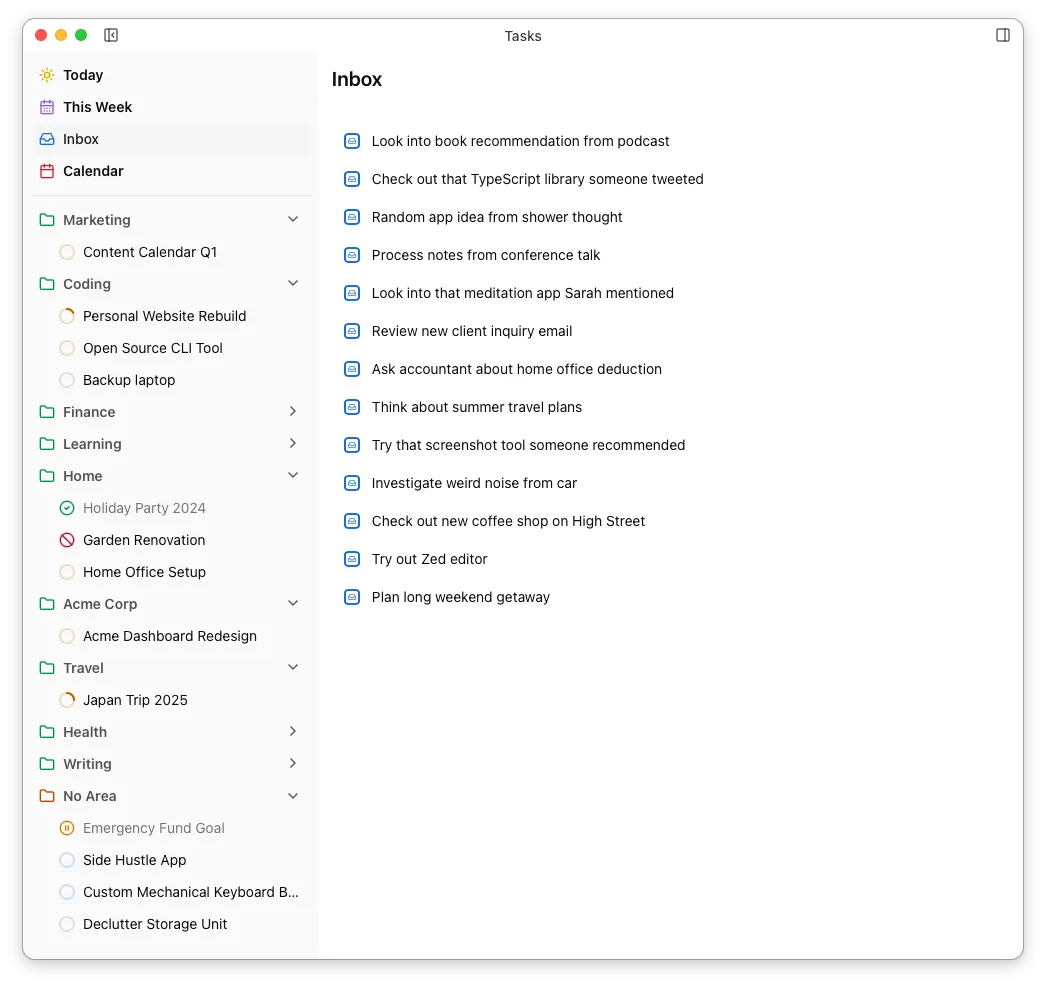
The top part of the sidebar contains the main views. Your areas are shown below as collapsible “folders” containing their projects. The final “area” is always No Area and contains your area-less projects and any tasks which have neither a project or area set.
Each project’s status is shown by an indicator in the sidebar. Active, Ready and Planning projects have a progress indicator which shows how many of their tasks have been completed.
| Status | Colour | Indicator |
|---|---|---|
| Planning | Blue | Progress indicator |
| Ready | Grey | Progress indicator |
| Active | Amber | Progress indicator |
| Blocked | Red | 🚫 |
| Paused | Orange | ⏸️ |
| Done | Blue | ✅ |
Clicking an item in the sidebar shows the appropriate view in the main window…
Today ☀️
Section titled “Today ☀️”The Today view is your working daily task list. The Scheduled for Today section contains everything you’ve scheduled for today. Below that there are collapsible sections showing Overdue or Due Today (uncompleted tasks with a due date of today or earlier) and Became Available Today (uncompleted tasks with a defer-until date of today).
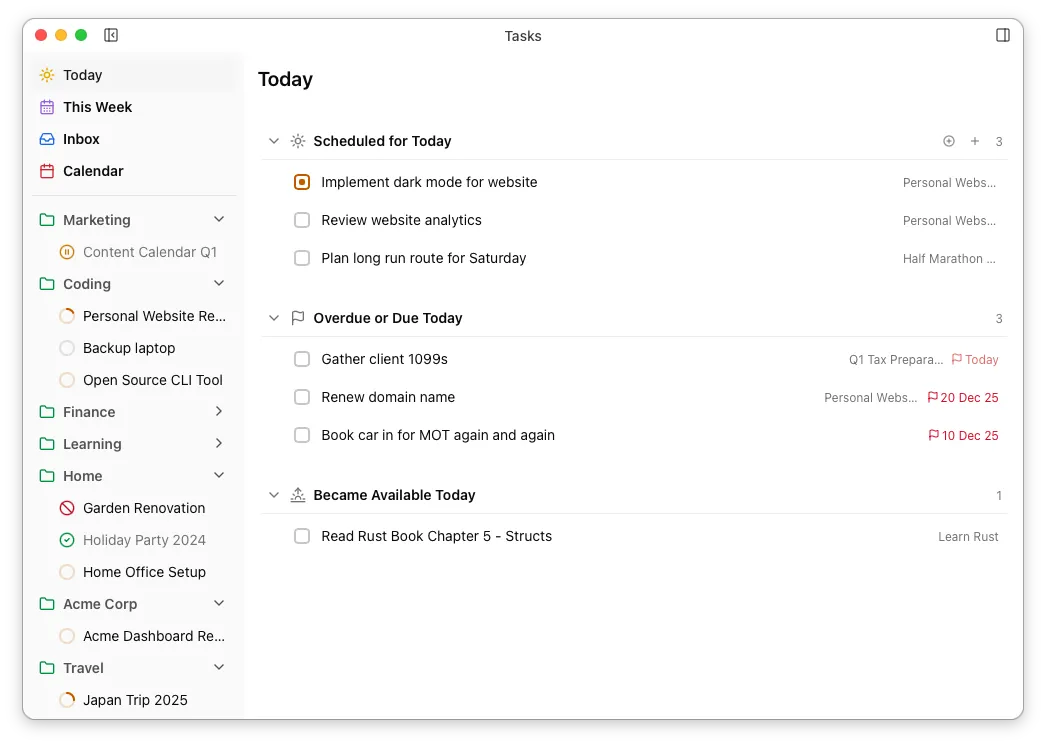
The last two sections exclude tasks which are scheduled for today, so dragging a task into Scheduled for Today will set its scheduled date and “remove” it from the other sections.
You can reorder the tasks in Scheduled for Today. You can also add temporary headings to help with planning your day.
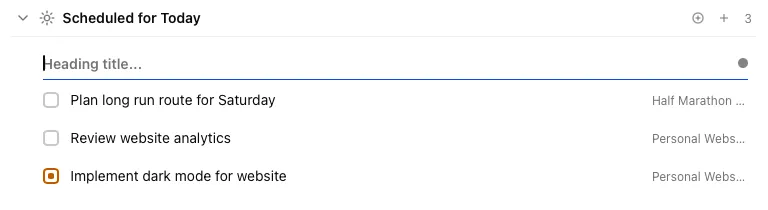
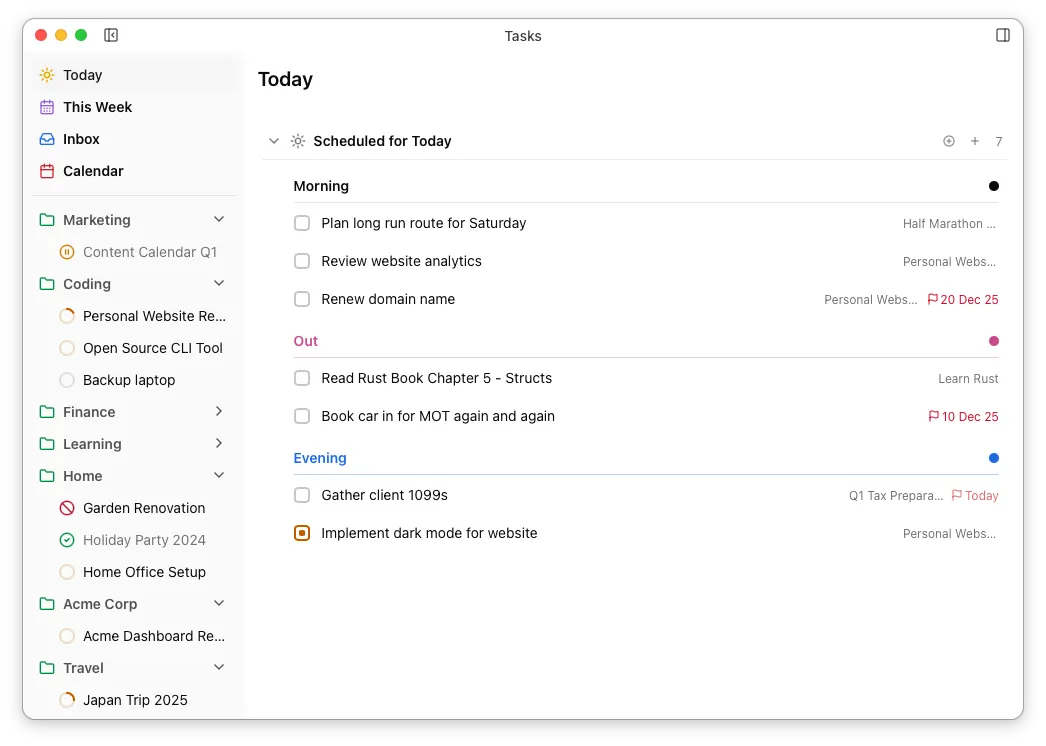
Headings have a name and colour, and can be reordered within Scheduled for Today in a similar way to tasks. Headings are purely presentational – they have no effect on your task files or any other part of the desktop UI. Here’s an example of a Today view using three headings, where all overdue and newly-available tasks have been moved (ie. scheduled) for today.
This Week 🗓️
Section titled “This Week 🗓️”The This Week view is intended for short-term planning. It shows the current week in a calendar view, with tasks displayed as cards.
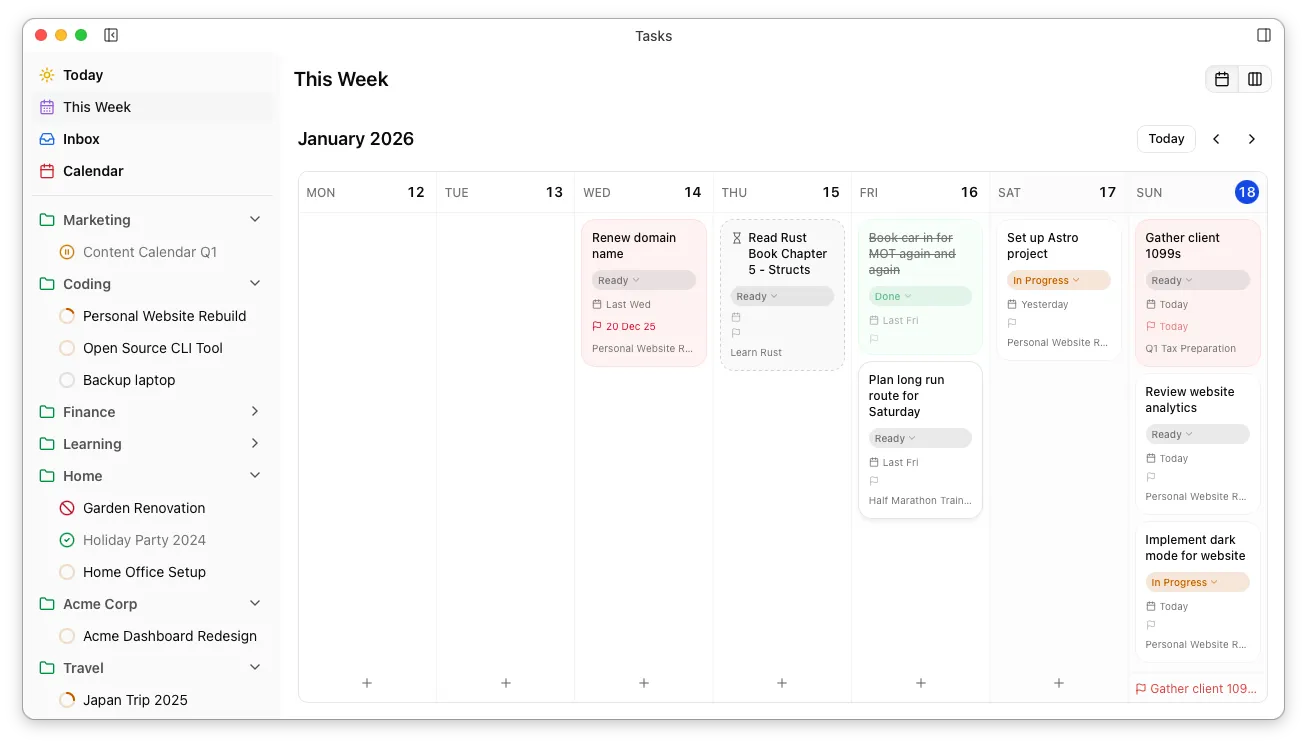
- The calendar shows tasks with a scheduled date, and dragging a task between days sets its scheduled date.
- The only unscheduled tasks shown as cards are those with a defer until date and no scheduled date, which are shown with a dotted border. Dragging one of these will set its scheduled date and cause it to behave like any other task in this view.
- The calendar shows due tasks at the bottom of each day regardless of if/when they are scheduled. This helps to make hard deadlines visible when planning while ensuring this view only shows your actual plan for the week.
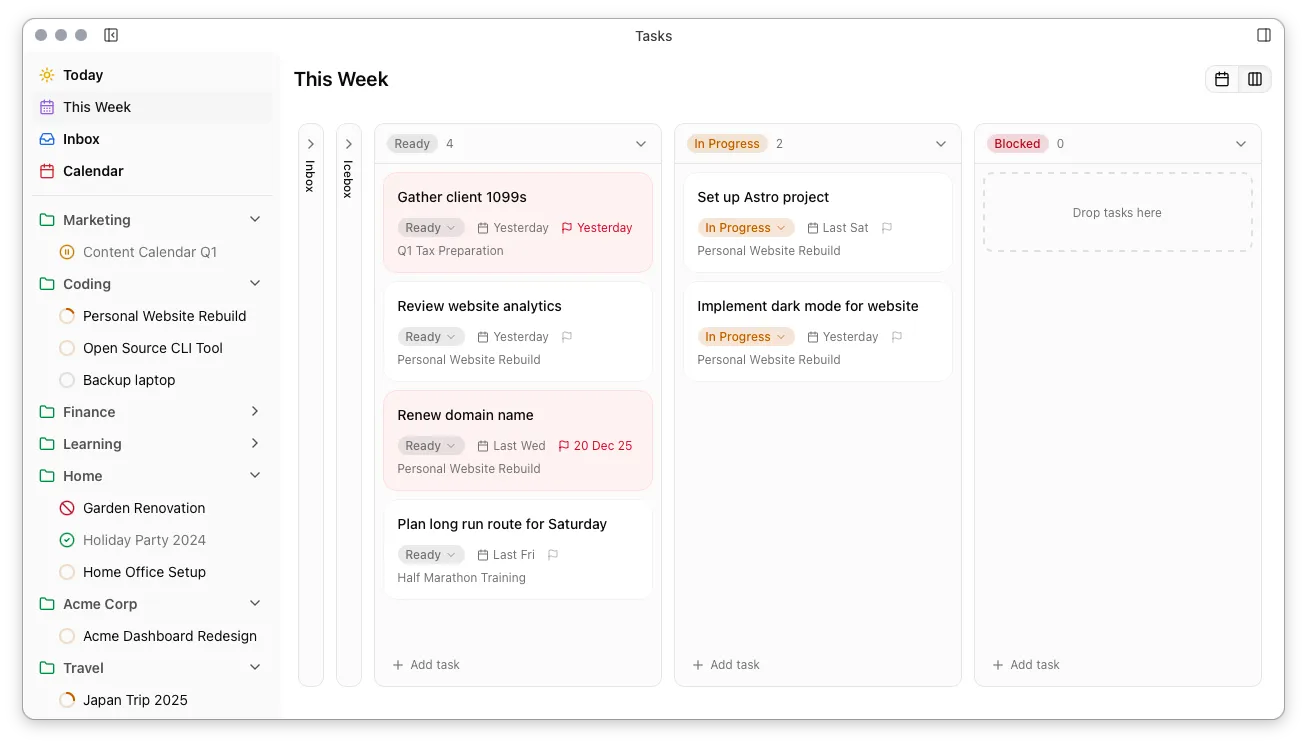
Your This Week view also includes a Kanban board showing all tasks scheduled for this week by status, which can be helpful when you want a general overview of the week’s progress.
Inbox 📥
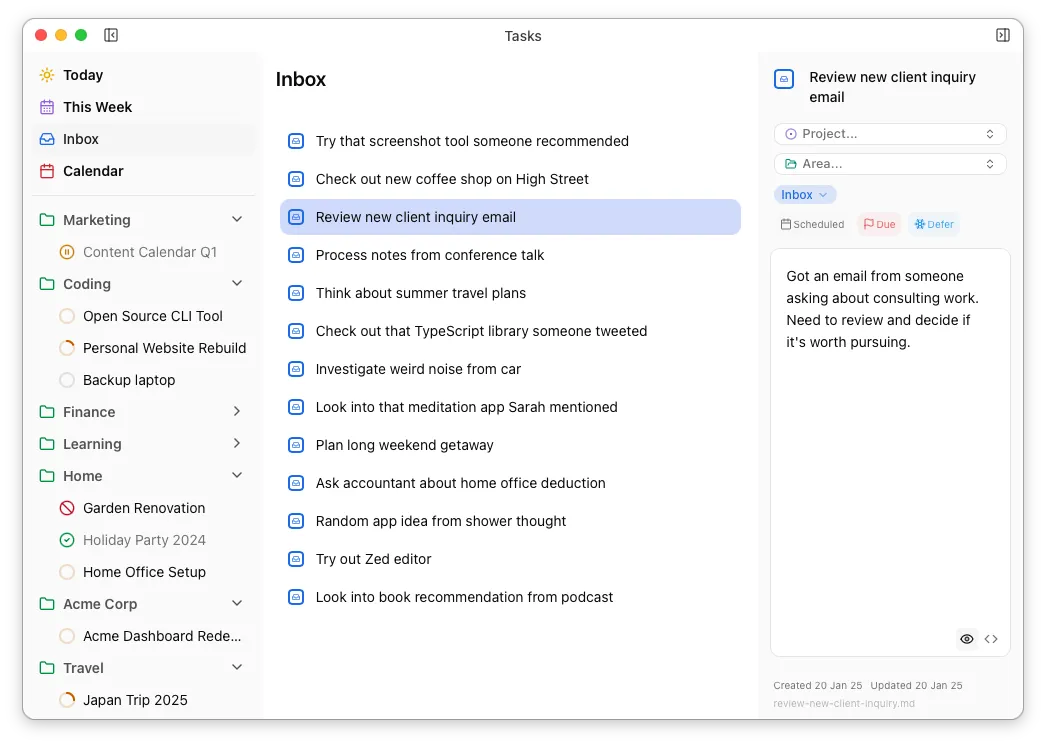
Section titled “Inbox 📥”The Inbox view shows all tasks with status inbox. This is a simple list view intended to make processing new tasks easy.
Calendar 📅
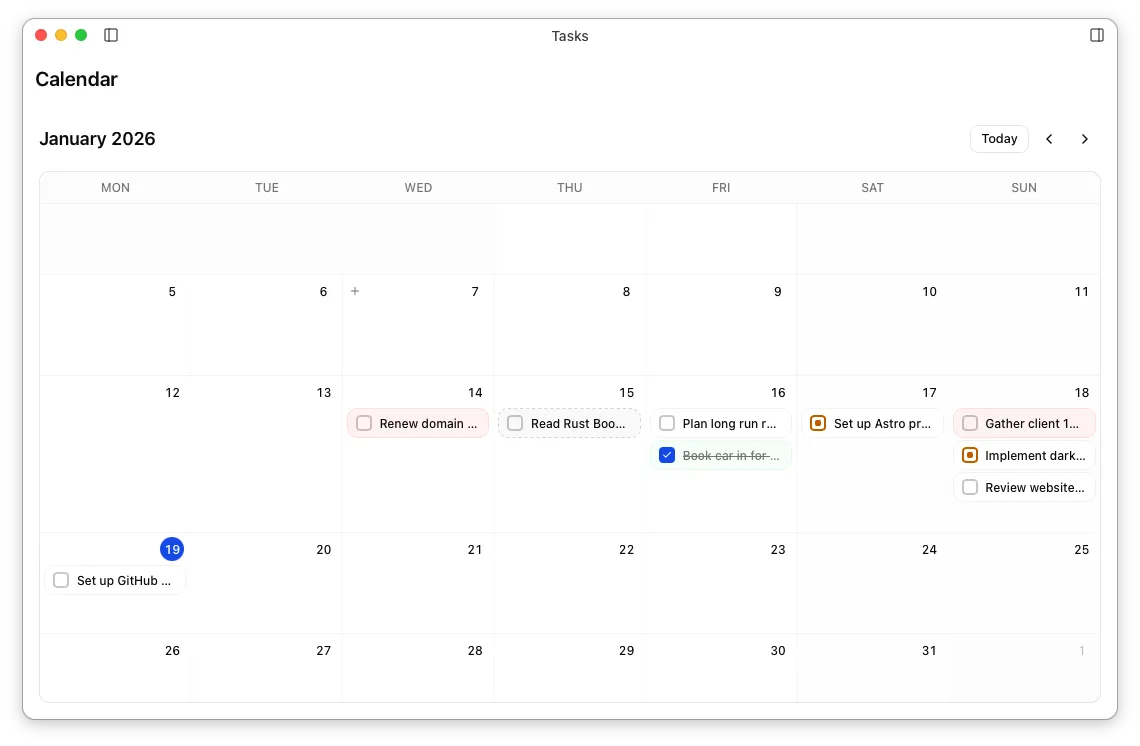
Section titled “Calendar 📅”The Calendar view is similar to the This Week view, but for longer-term planning and scheduling, and generally behaves in the same way. Only scheduled and defer-until tasks are shown and dragging a task always updates its scheduled date.
Project View ⚪
Section titled “Project View ⚪”Selecting a project in the left sidebar shows its project view. The project’s status can be changed in the header, and the body of the project document is available for reference in the expandable section at the top. The project’s tasks are shown below.
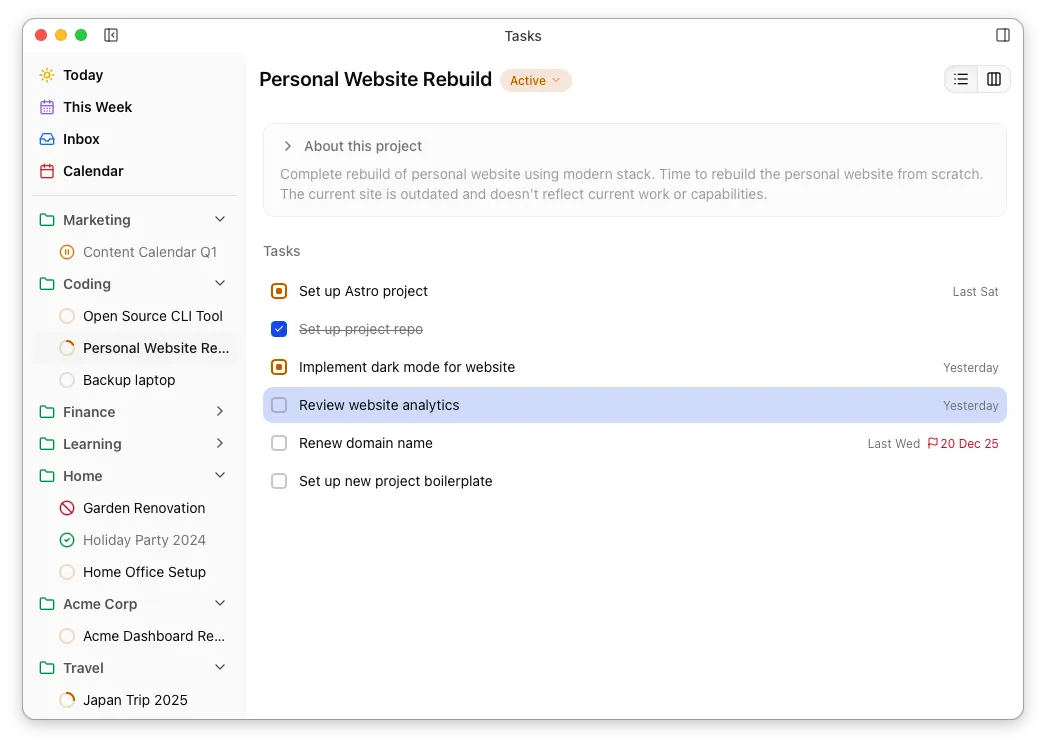
You can also view the project’s tasks in a kanban board…
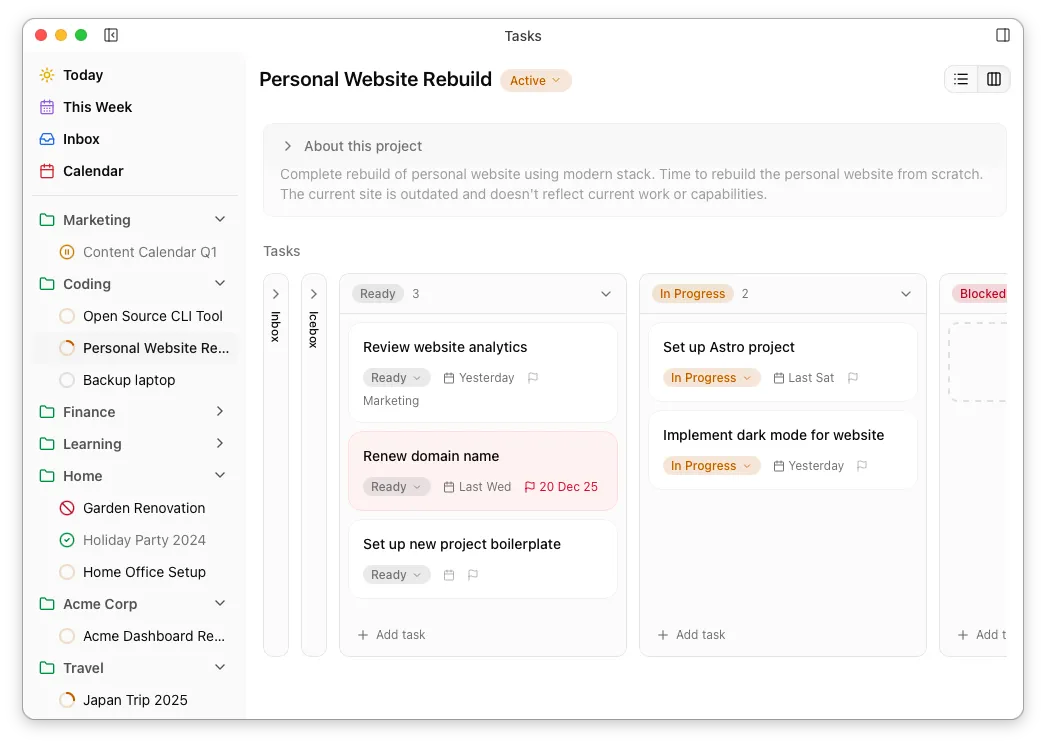
Area View 📁
Section titled “Area View 📁”In a similar way, selecting an Area in the left sidebar shows its area view. The body of the area file is shown in the expandable section at the top and its active projects are shown as cards below.
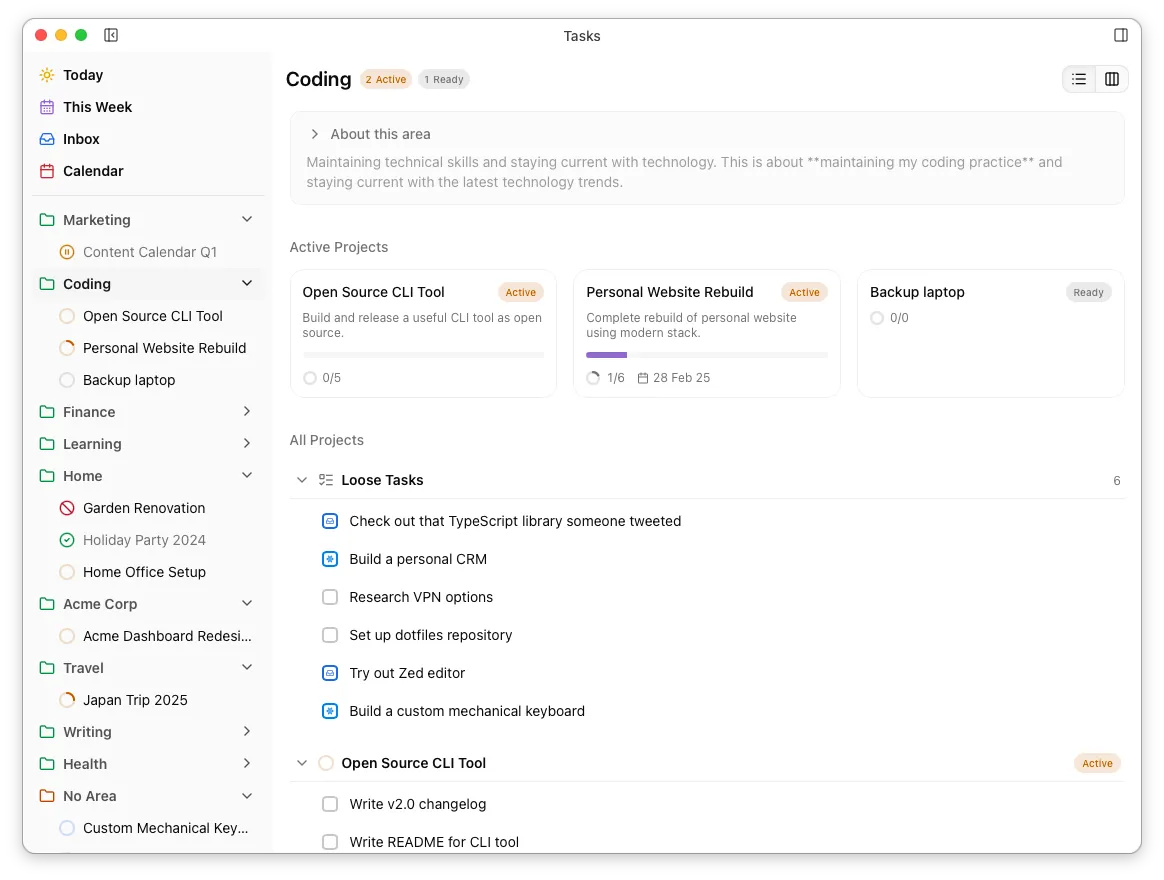
The Loose Tasks section shows all tasks which belong to the area but don’t have a project. The sections below show the areas active projects and their tasks.
Dragging a task from one project to another (or to/from the Loose Tasks section) will update (or clear) the task’s project field appropriately.
As with projects, areas also have a kanban board…
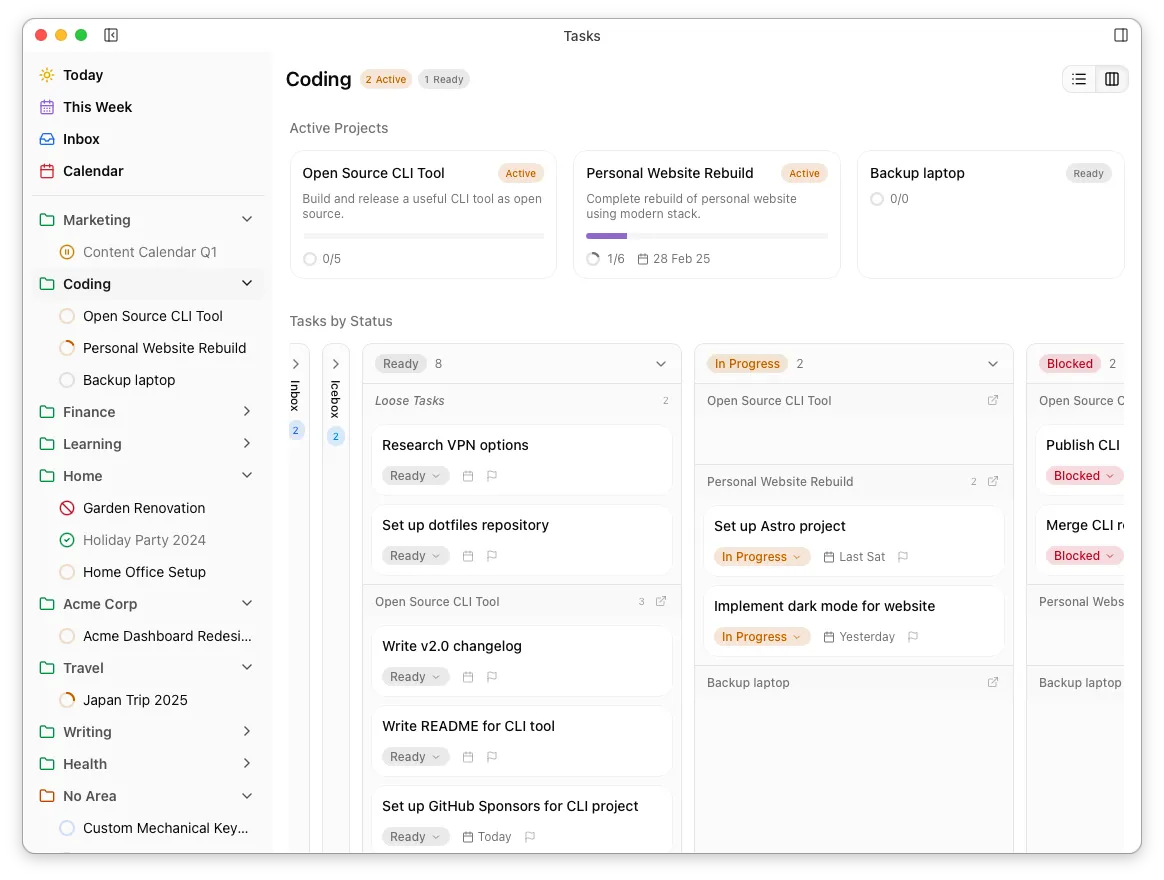
The No Area View
Section titled “The No Area View”The No Area view works exactly like any other Area, except that it shows projects without an assigned area, and its Loose tasks section shows any tasks with neither area nor project.