
Working With Lists
You’ve probably noticed that all the views have two main ways of displaying tasks: cards and lists. Cards are used in calendars & kanban boards and lists are used everywhere else. Let’s look at lists in a bit more detail…
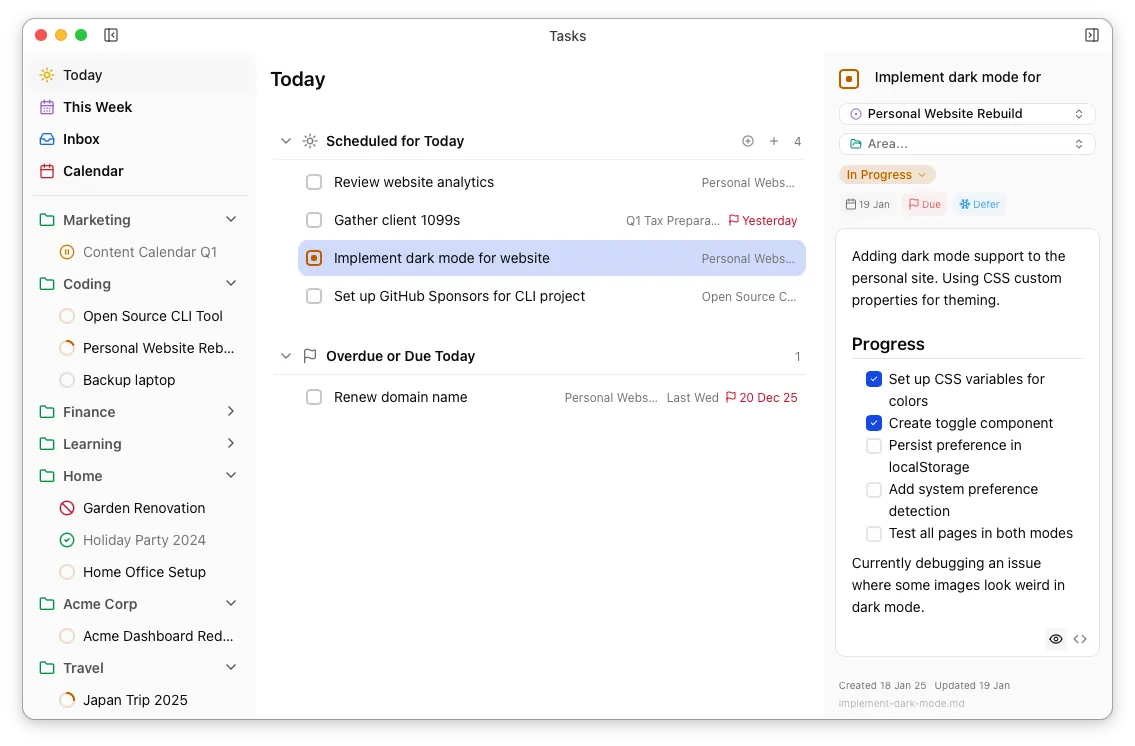
You can select a task by clicking on it or using the up/down keys. The currently selected task will have a blue background and will always be loaded in the task details panel.
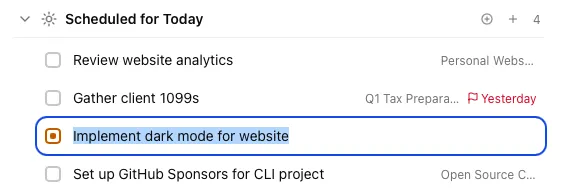
You can edit a task’s title by double-clicking or pressing Enter while it’s selected. Confirm your edit by clicking somewhere else or pressing enter again, or cancel with Escape.
You can quickly reorder the task and edit other fields with the keyboard shortcuts and right-click menu. The task’s status is shown in the checkbox, and clicking it will toggle between ready and done.
Creating Tasks
Section titled “Creating Tasks”Pressing
If no task is selected, the behaviour of
Deleting Tasks
Section titled “Deleting Tasks”You can delete the selected task with