
Obsidian Plugin
The Obsidian plugin turns wikilinks to task files into interactive widgets. Link to a task from anywhere in your vault and see its status, project, dates, and other metadata inline. Check off tasks without opening the file.
Features
Section titled “Features”- Interactive task widgets — Wikilinks to tasks render with checkboxes, status indicators, project/area, and due dates
- Status colours — Coloured borders show task state at a glance (blue for inbox, yellow for in-progress, red for blocked)
- Check off tasks — Click the checkbox to mark tasks done without leaving your note
- Convert checklist items — Right-click any checklist item to turn it into a Taskdn task file
- Inline title replacement — Display the task’s title frontmatter instead of the kebab-case filename, with a status-coloured border
Installation
Section titled “Installation”Community Plugins (Coming Soon)
Section titled “Community Plugins (Coming Soon)”The plugin isn’t in the Obsidian Community Plugins store yet. Once available, install it by going to Settings → Community Plugins, searching for “Taskdn”, and clicking Install.
Until then, use one of the methods below.
Using BRAT (Recommended)
Section titled “Using BRAT (Recommended)”BRAT (Beta Reviewer’s Auto-update Tool) handles installation and keeps the plugin updated automatically.
-
Install BRAT from Settings → Community Plugins → Browse, search for “BRAT”
-
Enable BRAT in your Community Plugins list
-
Open the Command Palette (
Cmd/Ctrl+P) and run BRAT: Add a beta plugin for testing -
Enter the repository:
dannysmith/obsidian-taskdn -
Go to Settings → Community Plugins, find “Taskdn”, and enable it
Manual Download
Section titled “Manual Download”-
Download the latest release:
-
Extract the zip file
-
Copy the extracted files (
main.js,manifest.json,styles.css) to your vault’s plugin folder:YOUR_VAULT/.obsidian/plugins/obsidian-taskdn/Create the
obsidian-taskdnfolder if it doesn’t exist. -
Restart Obsidian
-
Go to Settings → Community Plugins, find “Taskdn”, and enable it
Make sure Wikilinks are enabled in your vault settings.
Configuration
Section titled “Configuration”Open Settings → Taskdn to configure:
| Setting | Description |
|---|---|
| Tasks directory | Path to your tasks folder (default: tasks) |
| Default status | Status for newly converted tasks (default: inbox) |
| Show desktop button | Whether to show the “open in desktop app” button |
| Exclude patterns | Files to ignore, supports wildcards |
| Use task title as inline title | Show the title frontmatter instead of the filename in the inline title |
| Sync filename with task title | Also rename the file when the inline title is edited |
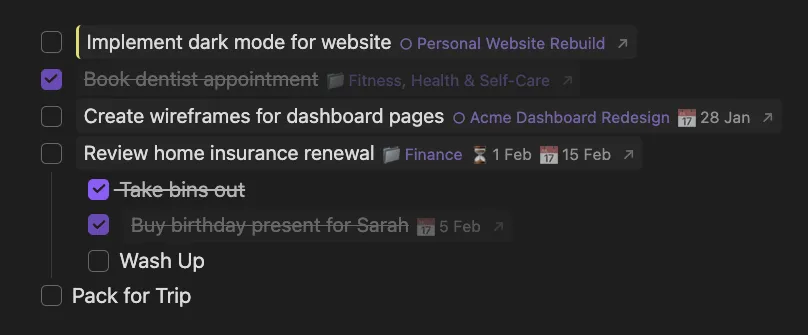
Link to task files using standard wikilink syntax:
- [[call-dentist]]- [[review-quarterly-report]]- Check out [[website-redesign]] when you have timeWorks in both Live Preview and Reading mode. Tasks in bullet lists behave like native Obsidian checklists—completed tasks get strikethrough styling.
Inline Title
Section titled “Inline Title”By default, Obsidian displays the filename as the inline title at the top of documents. For task files, this means you see buy-groceries instead of “Buy groceries”. The plugin can replace this with the human-readable title from frontmatter.
- Enable Settings → Appearance → Show inline title (Obsidian’s native setting)
- Enable Settings → Taskdn → Use task title as inline title
Status Border
Section titled “Status Border”When enabled, a coloured left border appears indicating the task’s status:
| Status | Border Colour |
|---|---|
| inbox | Blue |
| icebox | Cyan |
| ready | Green |
| in-progress | Yellow |
| blocked | Red |
| dropped | Pink |
| done | Green |
Editing the Title
Section titled “Editing the Title”Click the inline title to edit. When you finish (press Enter or click away), the plugin:
- Updates the
titlefrontmatter - Sets
updated-atto today’s date - Optionally renames the file (if “Sync filename with task title” is enabled)
The standard Obsidian behaviour of renaming the file is intercepted—your edits go to the frontmatter instead.
Filename Sync
Section titled “Filename Sync”Enable Sync filename with task title to rename files when editing the inline title:
- Filenames are converted to kebab-case (“Buy Groceries” →
buy-groceries.md) - Obsidian updates all wikilinks automatically
- Duplicate names get a number suffix (
buy-groceries-2.md)
When It Applies
Section titled “When It Applies”The inline title replacement only activates when all of these conditions are met:
- The file is in your configured tasks directory
- The file is not matched by any pattern in the exclude patterns list
- The file has valid frontmatter with both
titleandstatusfields
For all other files, Obsidian’s normal inline title behaviour applies—edits will rename the file as usual.