Desktop App Overview
The desktop app provides an interface for working with your task, project and area files as you would in any normal task management app. Instead of editing markdown and YAML, you get a clean, fast interface designed for getting work done.
Installation & Setup
Section titled “Installation & Setup”Download and install the desktop app…
Open the settings (
Using this documentation
Section titled “Using this documentation”This documentation provides a comprehensive userguide for working with the Desktop App. I’ve tried to write them in a way that is both succinct and helps you learn how everything works quickly and fully. If you’re just getting started with taskdn, you should read the Getting Started guide first.
Overview
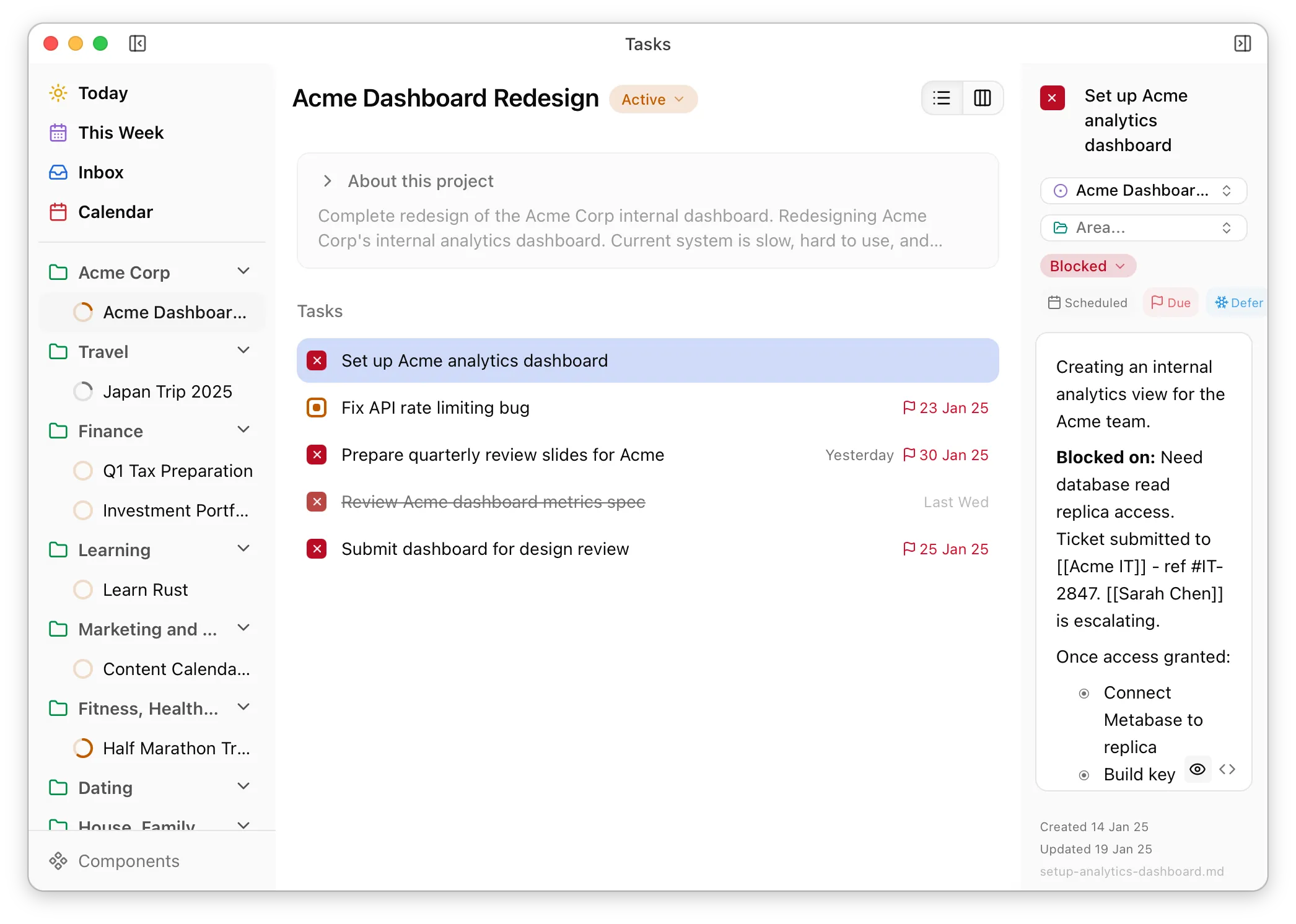
Section titled “Overview”The main window contains three main sections. The left sidebar allows you to navigate between different views and shows your active areas with their projects nested below them. The main area shows the currently selected view. The right sidebar shows the details of the currently selected task and allows you to edit it.
In the desktop app, Areas and Projects serve only to keep tasks and projects organised and provide useful context. It is not possible to modify area and task files, since that’s best done via another interface like Obsidian or a text editor.
Tasks can be freely edited, created and deleted in the same way you’d expect of any task management app.
A note on reordering
Section titled “A note on reordering”The specification provides no way to store order in task files. This avoids overcomplicating the files on disk with dependencies which would likely become confusing (and stale) when working in Obsidian, Claude and the CLI. But in the desktop app we’re using as our daily task manager, we do want to reorder and arrange our tasks.
The desktop app allows reordering on a per-view basis: the order of your tasks in a project or area view has no effect on how they appear in your Today view, for example. No ordering data is ever written to your files on disk – instead it’s saved in the desktop app’s internal data store.
What the desktop app isn’t…
Section titled “What the desktop app isn’t…”This is a task management app intended primarily for short-term planning and day-to-day work. It is not:
- A file browser or full-featured markdown editor for your files. Use Obsidian or a text editor for that.
- A project planning tool. In taskdn, tasks should be actually actionable and concrete. The best place to do speculative planning is in the body of a project or area file.
- A project management system. While the spec includes some project fields to help with project management, this app isn’t the right place to do that. [If I ever decide to include that, it’ll almost certainly be as a standalone separate product.]
- An AI product. There are no AI features in the desktop app. If you want AI to work with your tasks, use the Claude Plugin, CLI or a tool which can work directly with your files.
The desktop app is focused on one thing: helping you manage and complete your tasks.