
Getting Started
Most task management apps force a choice: use something like Notion and get powerful features but lose ownership of your data, or use plain files and miss out on good UIs. Taskdn is a different approach—your tasks live as markdown files on disk, but you get proper tools to work with them.
The system stores tasks, projects, and areas as markdown files with YAML frontmatter. Three directories, one file per entity, that’s it. Keep them in an Obsidian vault, a git repo, or just a folder on your desktop. Since everything is just files, you can edit them in any text editor, version them, back them up however you like, or build your own tools on top. The full file format is defined in the Core Specification.
But raw files aren’t great for actually doing task management. That’s where the Taskdn products come in—interfaces designed for specific contexts, all reading and writing the same files.
The Suite
Section titled “The Suite”| Product | Status | Description | |
|---|---|---|---|
| 🖥️ | Desktop App | Ready | Day-to-day task management with a beautiful UI |
| ⌨️ | CLI | Ready | Terminal interface for humans and AI agents |
| 💎 | Obsidian Plugin | Ready | View and manage tasks within Obsidian |
| 🤖 | Claude Code Plugin | Ready | Skill and commands for AI-assisted task management |
Core Concepts
Section titled “Core Concepts”Your data lives in three directories: tasks/, projects/, and areas/. Each entity gets its own markdown file with YAML frontmatter at the top and freeform notes in the body. That’s the whole system.
Many people keep these directories inside an Obsidian vault, which works well—you can link between tasks and notes, use Obsidian’s search, and the Taskdn plugin adds task-specific features. But Obsidian isn’t required. The files work anywhere.
This file-based approach also means AI tools can work with your tasks directly. Claude Code (or any agent that can read files) can query your tasks, create new ones, or help with planning—no API keys or integrations required. The CLI has an --ai mode that outputs structured data designed for LLMs.
The Hierarchy
Section titled “The Hierarchy”Taskdn uses three entity types, loosely based on GTD and PARA:
- Areas are ongoing areas of responsibility—things like “Work”, “Health”, or “Client: Acme Corp”. They don’t end.
- Projects have a defined goal and finish when you’re done. They can belong to an area.
- Tasks are the actual things you do. A task can belong to a project, to an area directly, or stand alone.
So “Work” (area) might contain “Q1 Planning” (project), which contains “Review budget spreadsheet” (task). Or “Call the dentist” might just sit under “Health” without needing a project.
A task represents a single actionable item. Tasks live in your configured tasks/ directory.
---title: Review quarterly reportstatus: in-progressscheduled: 2025-01-14projects:  - '[[Q1 Planning]]'---## Notes
Key points to review:  - Revenue projections  - Budget allocations
Task Statuses
Section titled “Task Statuses”Tasks follow a simple workflow: inbox for new captures, ready once processed, in-progress when you’re working on it, then done when complete. Use blocked for tasks waiting on something external, icebox for things you’re intentionally deferring indefinitely, or dropped for tasks you’ve decided not to do. See the specification for the full status definitions.
Projects
Section titled “Projects”A project represents a collection of related tasks with a defined end goal. Projects live in your configured projects/ directory.
---title: Q1 Planningstatus: in-progressarea: '[[Work]]'description: Quarterly planning and budget review for Q1 2025.---## Overview
This project covers all Q1 planning activities...
Project Statuses
Section titled “Project Statuses”Projects have their own workflow: planning while scoping, ready when planned, in-progress during active work, and done when complete. You can also mark projects as paused or blocked when needed. See the specification for the full status definitions.
An area represents an ongoing area of responsibility. Areas live in your configured areas/ directory.
---title: Workdescription: Professional responsibilities and career development.---## Context
Current role, key responsibilities, and long-term goals...
Areas don’t have workflow statuses—they’re just active or archived. See the specification for details.
The Products
Section titled “The Products”Different contexts need different tools. You might use the desktop app when you’re focused on getting things done, switch to the CLI when you want Claude to help with a weekly review, and use the Obsidian plugin when you’re working on project notes and want to check off a task without leaving your document.
Desktop App
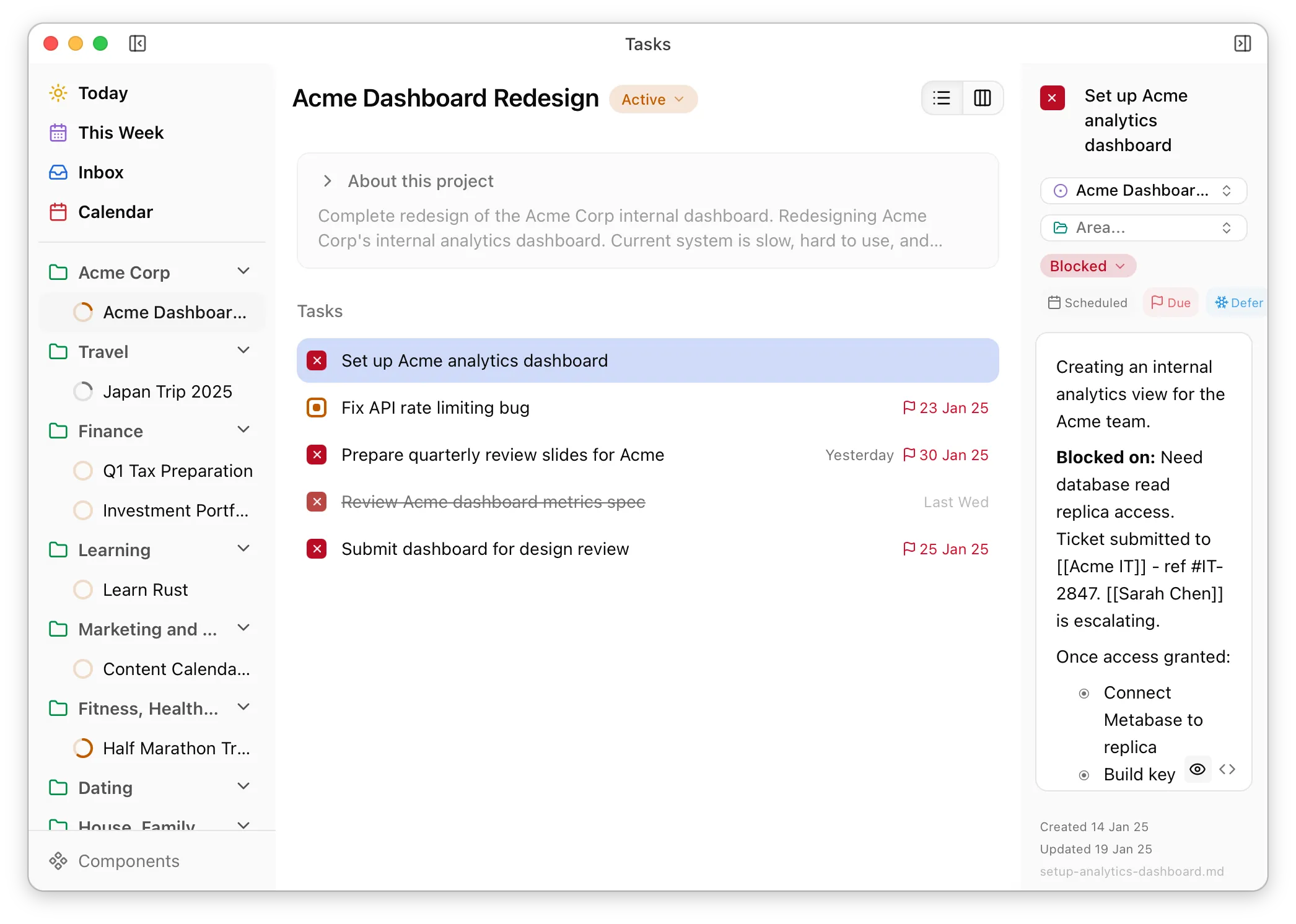
Section titled “Desktop App”A proper task management app, but reading your markdown files. The desktop app is where you do most of your day-to-day task management—capture quick thoughts, plan your day, work through your lists. It’s designed to feel fast and get out of your way.
The CLI has two faces. For humans, it’s a fast way to query and update tasks from the terminal: formatting, fuzzy search, natural language dates. For AI agents, --ai mode outputs structured markdown that LLMs can parse easily.
The context command is particularly useful for AI workflows—it returns an entity plus all its relationships, so an agent can understand a project’s full picture in one call.
Obsidian Plugin
Section titled “Obsidian Plugin”If you use Obsidian, the plugin makes task links show up as widgets with status, due date, and project info. Click to change status without opening the file. You can also turn any checklist item into a proper task file.
Claude Code Plugin
Section titled “Claude Code Plugin”Load the skill and Claude knows how to work with your tasks. Ask it what’s overdue, have it create tasks as you work, or get help planning your week. The /tdn:today command shows what needs attention today.